
Fotor Alternative: 5 Best Free Photo Restoration & Design Tools in 2026
Looking for a Fotor alternative? Compare the 5 best free and paid tools for AI photo restoration, glare removal, and graphic design without credit limits.
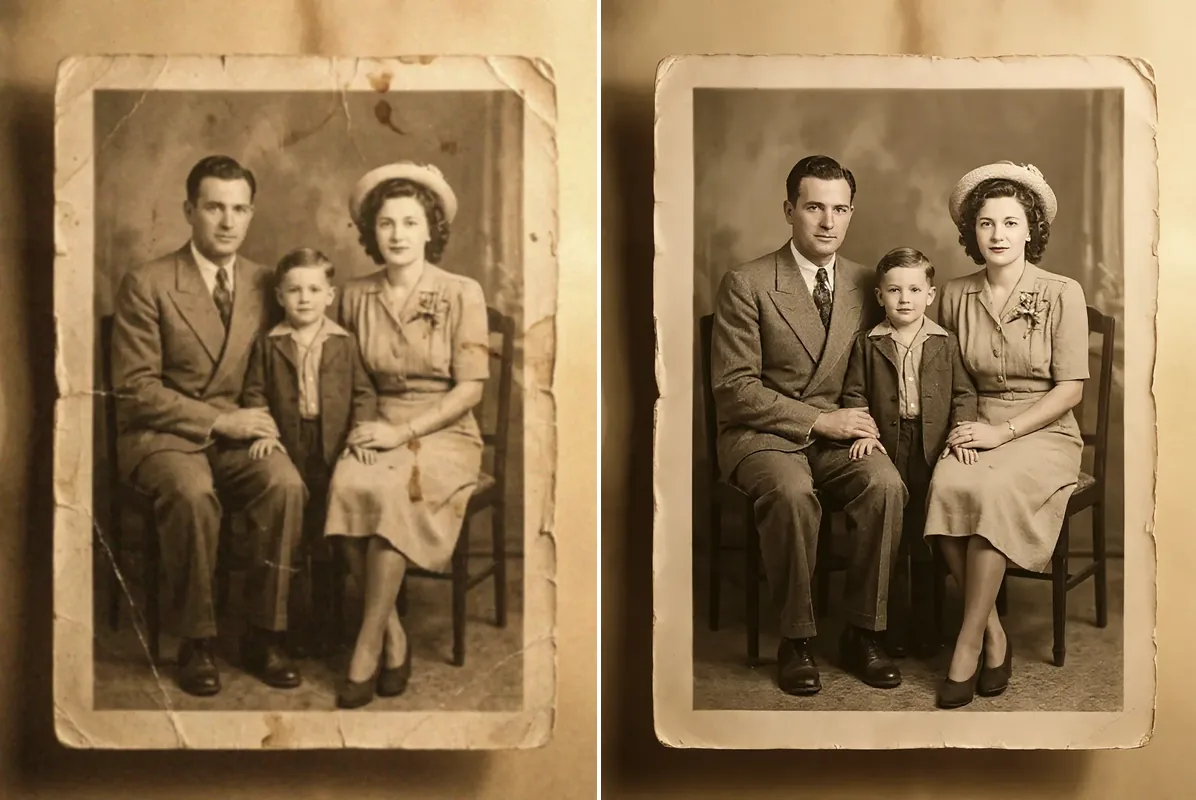
Fotor is a widely used online design and photo editing suite, but creators searching for a practical fotor alternative frequently run into restrictive credit quotas and watermarked exports. Fotor's free tier stamps visible watermarks on AI-processed downloads, while entry-level paid plans restrict creators to 100 or 300 monthly credits. These allowances deplete rapidly when repairing vintage photo collections, removing background distractions, or testing multiple edits, prompting many to find a capable fotor alternative.
Furthermore, Fotor functions primarily as a general-purpose template editor rather than a dedicated photographic restoration engine. Its automated filters rely on global smoothing adjustments that blur genuine film grain, soften facial textures, and fail to remove complex physical tears, creases, or eyeglasses glare. When your priority is high-fidelity defect reconstruction or unmetered editing, finding the right fotor alternative delivers cleaner results without recurring subscription fees.
If you are looking for an unmetered, login-free fotor alternative for AI scratch and reflection removal, CrispFix is the top choice. For professional layer-based PSD manipulation in a web browser, Photopea is an unmatched fotor alternative. For pre-made marketing graphics and team collaboration, Canva remains the leading solution when choosing a design suite.
Note: This site operates CrispFix and we've aimed to evaluate all tools objectively.
Quick Decision Guide (TL;DR)
Looking for the best fotor alternative? Here is how the top options stack up at a glance across free tiers, strengths, platforms, and primary use cases when comparing each fotor alternative:
| Tool | Free Tier | Best Strength | Platforms | Best For |
|---|---|---|---|---|
| CrispFix | 100% Free (no account/credits) | Neural scratch, crease, and glare removal | Web (All browsers) | Vintage photo restoration & reflection fix |
| Photopea | Free with ads (full toolset) | PSD layer compatibility & precision selection | Web | Advanced manual photo editing & layering |
| BeFunky | Free basic editing (AI paywalled) | Artsy cartoon filters & collage wizard | Web, iOS, Android | Casual creative edits & photo collages |
| Canva | Free core templates (5GB cloud) | Drag-and-drop marketing templates & brand kits | Web, iOS, Android, Mac, Windows | Social media posts & marketing assets |
| Pixlr | Free with 3 exports/day (ads) | Dual-mode express and layer editing | Web, iOS, Android | Fast daily crops & lightweight retouching |
| Fotor (Benchmark) | Free with watermarked AI exports | 100,000+ templates & automated collages | Web, iOS, Android, Mac, Windows | General template design & casual collage making |
- Best for Defect & Optical Repair: CrispFix delivers dedicated neural inpainting for physical creases, emulsion scratches, and glass glare as a completely free fotor alternative without monthly credit meters.
- Best for Professional Layer Manipulation: Photopea gives you desktop-grade Photoshop tools directly inside any web browser as an advanced fotor alternative.
- Best for Marketing Collateral & Social Posts: Canva remains the industry leader for multi-format drag-and-drop templates when evaluating marketing design tools.
- Best for Artistic Sketch & Cartoon Filters: BeFunky provides beginner-friendly digital art effects and collage builders as a creative suite.
- Best for Lightweight Web Edits: Pixlr offers dual express and advanced workspaces for fast in-browser adjustments for daily adjustments.
Why Search for a Fotor Alternative?
While Fotor works well for basic social media collages, users handling complex image restoration or high-volume editing face three distinct hurdles that make a dedicated fotor alternative essential:
1. Credit Caps and Watermarked Exports
Fotor's free tier applies a visible watermark to images processed with AI features. Upgrading to Fotor Pro ($3.99/mo annual or $8.99/mo monthly) grants 100 credits per month, while Pro+ ($8.33/mo annual or $19.99/mo monthly) provides 300 credits per month. Because generative expansion, object removal, and background replacement consume credits per click, trial-and-error edits quickly exhaust monthly allowances, making an unmetered fotor alternative much more practical.
2. Generalist Sliders vs. Dedicated Restoration Models
Fotor prioritizes marketing templates and broad portrait smoothing over structural pixel reconstruction, leading users to seek specialized tools:
- Scratch Inpainting: Often applies aggressive bilateral blur filters that eliminate genuine film texture along with scratches.
- Colorization: Uses generalized color transfer maps that frequently bleed pastel hues across clothing folds and backgrounds.
- Glare & Reflections: Offers no dedicated optical reflection separation, leaving flash hotspots on eyeglasses and photo glass unresolved.
Technical Comparison: Neural Defect Recovery vs. Graphic Suite Sliders
Understanding the difference between general-purpose editors and specialized restoration engines explains why a dedicated fotor alternative achieves cleaner results on damaged images:
Global Retouching Adjustments (Graphic Suites)
In standard web editors, clarity and sharpness tools operate globally on pixel luminance values. Increasing clarity sharpens existing paper cracks just as much as facial features, while boosting saturation produces unnatural skin tones on faded vintage prints.
Semantic-Aware Inpainting (Dedicated Restoration)
Dedicated photo restoration architectures separate the image into semantic feature maps:
- Defect Segmentation: A convolutional network isolates paper tears, dust specks, and emulsion cracks into a precise binary mask without touching surrounding undamaged pixels.
- Contextual Texture Synthesis: Diffusion models sample surrounding authentic high-frequency details (such as fabric weave and skin pores) to reconstruct missing areas naturally.
- Specular Highlight Decomposition: Optical glare models decompose bright surface reflections from underlying image content, restoring contrast beneath flash spots.
The 5 Best Fotor Alternatives Evaluated
Below is a detailed breakdown of each leading fotor alternative, spanning dedicated photo restoration and browser-based graphic editing.
1. CrispFix — Best for Free AI Photo Defect & Glare Restoration
CrispFix is an online photo restoration suite built specifically to repair damaged, faded, and glare-affected photographs without credit subscriptions or watermarks, serving as the premier free fotor alternative.
Key Capabilities
- Physical Tear and Scratch Inpainting: The old photo restoration tool detects cracks in aged photographic paper, removing emulsion fractures while preserving natural grain.
- Context-Aware Historical Colorization: The colorize photo tool applies realistic historical color palettes to monochrome portraits without oversaturation.
- Optical Reflection & Glare Removal: The remove glare from photo and remove glasses glare from photo tools extract specular flash bounce from eyeglasses and glossy frames.
- Neural Super-Resolution: The neural resolution image enhancer upscales restored images up to 4K resolution, reconstructing fine details for archival printing.
- Monochrome Processing: The black and white image converter creates balanced grayscale conversions with optimized tonal depth.
Pricing & Verdict
- Pricing: 100% Free with no account registration, no credit limits, and no watermarks.
- Verdict: The premier fotor alternative for users who want clean, unmetered photo restoration without navigating complex graphic design tools.
2. Photopea — Best In-Browser Photoshop Alternative
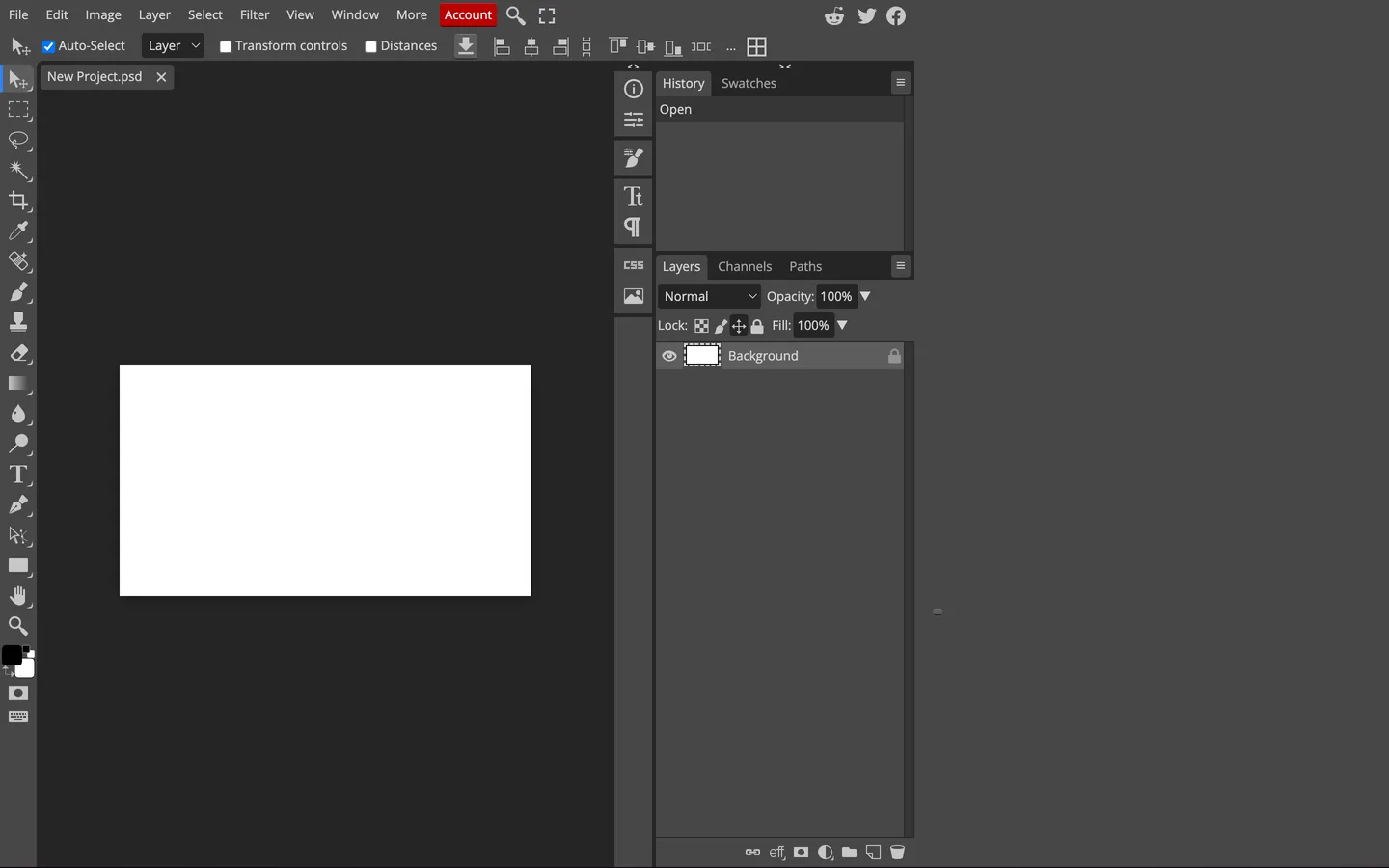
For users who require multi-layer compositing, layer masks, and manual adjustment curves, Photopea delivers a desktop-grade graphic workspace inside your web browser, serving as a powerful layer-based fotor alternative.
Pros
- Full compatibility with Adobe Photoshop (
.psd), GIMP (.xcf), and Illustrator (.ai) file formats, making it a versatile choice. - Non-destructive adjustment layers including Curves, Levels, and Selective Color.
- Complete selection toolset including Pen, Polygonal Lasso, and Quick Selection.
Cons
- Supported by sidebar advertisements on the free version.
- Requires manual graphic editing proficiency; lacks automated single-click defect restoration found in dedicated restoration tools.
Pricing
- Free Plan: 100% free access to all editing tools (ad-supported).
- Premium Plan: $5.00/month (or $15 for 3 months, $50/year) to remove ads and add 5GB cloud storage.
3. BeFunky — Best for Creative Artsy Filters and Collages
BeFunky
focuses on creative digital effects, cartoon transformations, and simple collage layouts, making it appealing for casual social creators.
Pros
- Signature Artsy effects, including the Cartoonizer, watercolor filters, and oil painting effects in BeFunky.
- User-friendly Collage Wizard that organizes multiple pictures without manual cropping.
- Simple batch photo resizing and cropping.
Cons
- Core AI features (such as background removal and advanced portrait touch-up) are locked behind paid tiers.
- Batch AI editing requires monthly credits under the Pro plan in this platform.
Pricing
- Free Plan: Basic editing tools and limited filters with export limits.
- BeFunky Plus: $83.88/year ($6.99/month) or $14.99/month (monthly billing) for full filter access and object erasure.
- BeFunky Pro: $149.88/year ($12.49/month) for batch AI editing and background removal.
4. Canva — Best for Marketing Collateral and Team Design
Canva
is the leading cloud-based design platform for small businesses, marketing teams, and content creators needing a layout-driven fotor alternative.
Pros
- Hundreds of thousands of professionally designed templates for Instagram, YouTube, presentations, and flyers.
- Intuitive drag-and-drop interface with shared brand kits and real-time team collaboration in this platform.
- Built-in Magic Studio AI suite for quick background removal and text generation.
Cons
- Built strictly for marketing design rather than photographic pixel restoration; cannot repair physical scratches or flash glare.
- Magic Studio AI tools require a paid Canva Pro subscription.
Pricing
- Free Plan: Free graphic templates, basic design tools, and 5GB cloud storage.
- Canva Pro: $12.99–$15.00/month (or $119.99–$120.00/year) for individual creators.
5. Pixlr — Best Lightweight Browser Editor
Pixlr
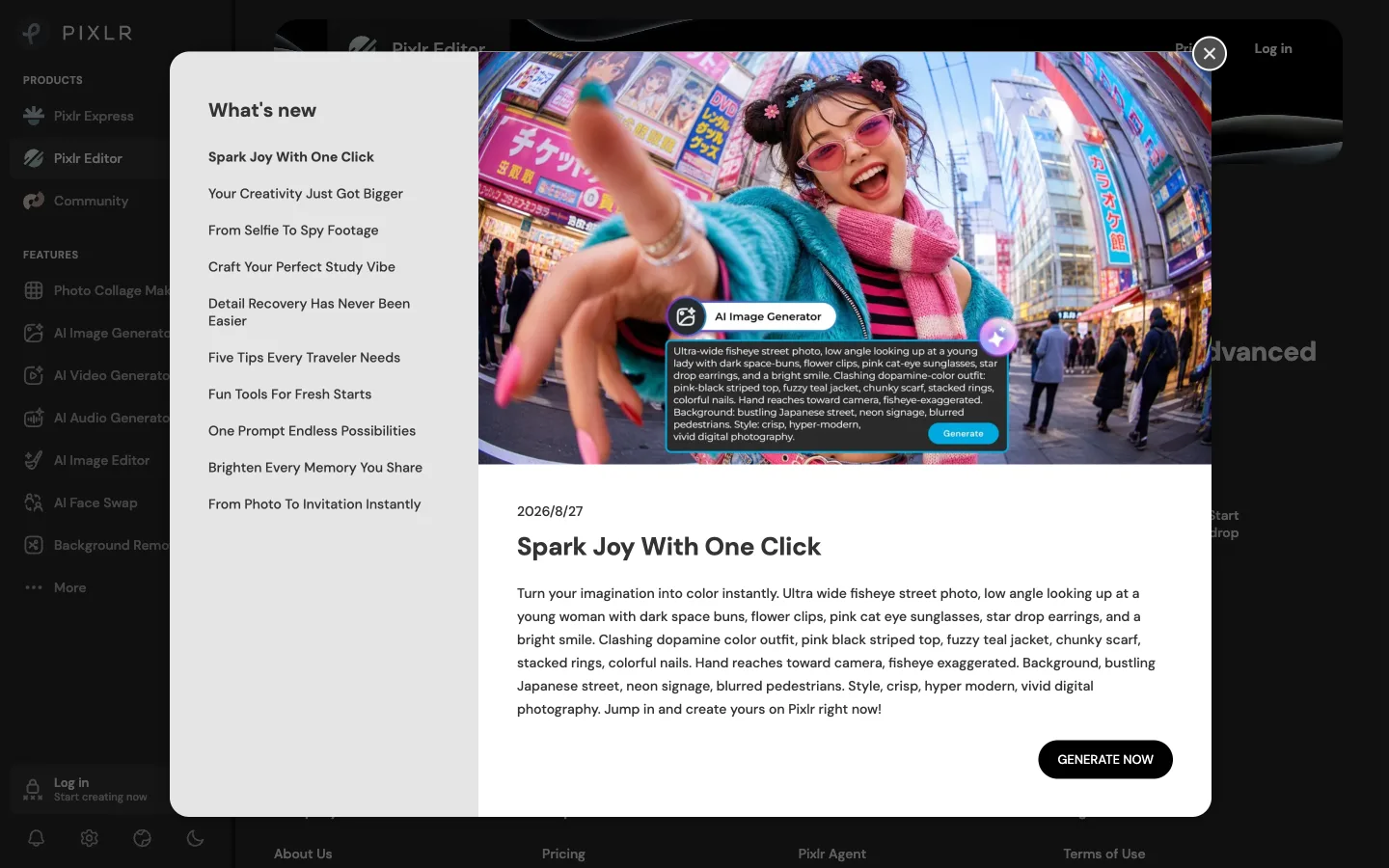
offers an accessible, dual-mode browser editing suite split into Pixlr X (simplified express tools) and Pixlr E (advanced layer editing), making it a flexible web-based fotor alternative.
Pros
- Fast browser loading with minimal computer memory usage in Pixlr.
- Dual-interface system accommodates both beginners and intermediate layer editors.
- Handy AI cutout and generative fill tools.
Cons
- Free plan enforces a strict limit of 3 saved exports per day and displays advertisements.
- Advanced AI generative credits are capped on paid tiers.
Pricing
- Free Plan: Basic web tools with a 3-save daily cap and advertisements.
- Plus Plan: $1.99/month (billed annually) or $2.49/month (monthly) for ad-free editing and 80 AI credits/month.
- Premium Plan: $7.99/month (billed annually) or $9.99/month (monthly) for 1,000 AI credits/month and full template access.
Reference Benchmark: Fotor Overview
To maintain an objective evaluation, it is worth acknowledging where Fotor retains distinct advantages over any specialized fotor alternative.
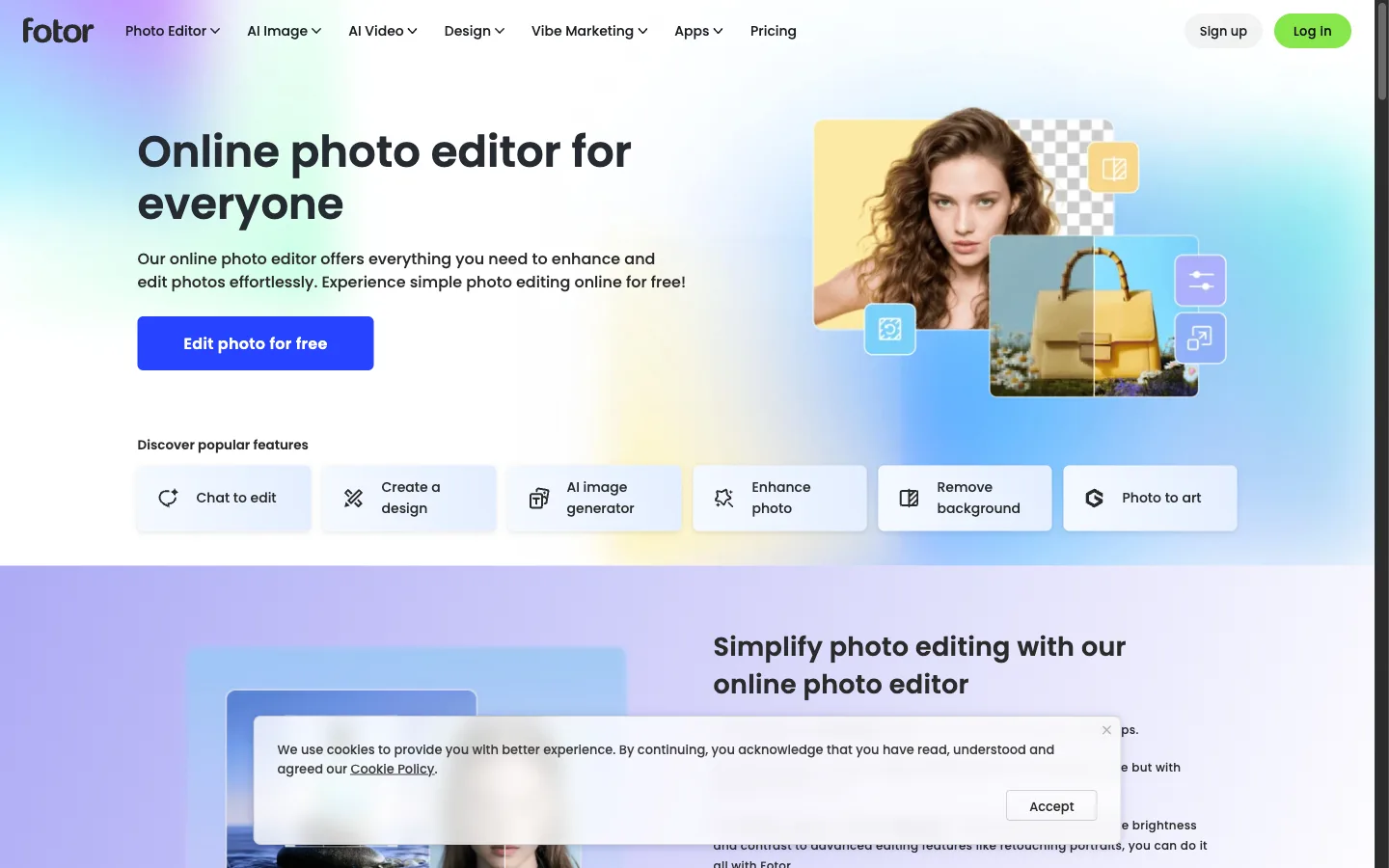
- Where Fotor Excels: Fotor provides an extensive library of over 100,000 pre-made graphic templates, holiday cards, and collage grids. Its all-in-one interface lets casual users combine basic photo retouching with social media typography in a single workspace.
- Where Fotor Falls Short: The presence of export watermarks on free AI edits, restrictive 100–300 monthly credit limits on paid plans, and generic smoothing filters make users search for a dedicated fotor alternative for serious photograph defect repair or optical glare removal.
- Official Pricing: Fotor Basic (Free with watermarks); Fotor Pro ($3.99/mo annual or $8.99/mo monthly for 100 credits/mo); Fotor Pro+ ($8.33/mo annual or $19.99/mo monthly for 300 credits/mo); Fotor Max ($19.99/mo annual for 1,000 credits/mo).
3-Step Workflow: How to Restore Photos for Free Without Paying for Credits
If you need to fix old, creased, or glare-affected photographs using a free fotor alternative without paying for monthly subscription credits, follow this step-by-step restoration pipeline:
Step 1: Repair Physical Scratches and Creases
- Digitize your physical photograph using a flatbed scanner at 300+ DPI or take a flat smartphone photo in even natural light.
- Open the dedicated old photo restoration tool in your web browser.
- Upload your image. The neural model automatically detects emulsion fractures, scratches, and dust spots, inpainting authentic texture across damaged regions without blurring facial details.
Step 2: Restore Authentic Historical Color
- If your picture is faded monochrome or sepia-toned, launch the colorize photo tool on your chosen fotor alternative.
- Upload the repaired image. The algorithm evaluates facial features and clothing patterns to synthesize balanced, natural skin tones and background colors.
Step 3: Remove Flash Glare and Upscale for Archival
- If your image contains harsh glass reflections or flash bounce, process it through the specialized remove glare from photo tool.
- Pass the final image through the resolution image enhancer to upscale the output to 4K or 8K resolution, ensuring sharp details for framing or digital archiving in this platform workflow.
How to Choose the Right Tool for Your Project
To select the best fotor alternative for your workflow, match your primary task to the appropriate solution:
- Choose CrispFix if: You need a 100% free fotor alternative to restore vintage family prints, remove flash glare from eyeglasses, convert photos with our black and white converter, or upscale images without watermarks, credit quotas, or payment cards.
- Choose Photopea if: You need an advanced fotor alternative with manual layer adjustments, PSD file compatibility, and precision masking in your browser for free.
- Choose Canva if: You are seeking a marketing-focused fotor alternative for building flyers, YouTube thumbnails, presentations, and brand kits that require pre-made graphic templates.
- Choose BeFunky if: You want a creative fotor alternative for artistic sketch effects, cartoon filters, and automated photo collage layouts.
- Choose Pixlr if: You want a lightweight web-based fotor alternative for quick daily crops and layered graphic adjustments.
Frequently Asked Questions
What is the best 100% free photo editor?
For specialized photo defect repair, scratch removal, and glare elimination, CrispFix is the best 100% free fotor alternative because it offers unlimited AI processing with no credit limits, watermarks, or account sign-ups. For general multi-layer graphic editing and Photoshop-compatible PSD manipulation, Photopea is the top free web-based option for browser editing.
Is GIMP still free?
Yes, GIMP (GNU Image Manipulation Program) remains completely free and open-source under the GNU General Public License. It runs on Windows, macOS, and Linux without subscription fees, ads, or paywalled features, making it a reliable desktop fotor alternative for advanced layer-based editing, though it requires a steeper learning curve than browser tools.
Which free AI is best for altering images?
For restoring degraded historical photos, colorizing black-and-white portraits, and eliminating glasses glare without credits or watermarks, CrispFix provides the best dedicated free fotor alternative toolset. For creative image generation, artistic collage styling, and quick background replacements, Canva and BeFunky provide accessible entry-level AI features on their free tiers on the web.
What is the best completely free photo editing software?
For offline desktop workstations, GIMP and Paint.NET are the best completely free photo editing software programs with full raster and layer toolsets. For browser-based workflows without software installation, CrispFix excels as an automated defect restoration fotor alternative, while Photopea delivers a comprehensive, zero-cost online editing workspace.
Get Started With Unmetered Photo Restoration
While Fotor remains a capable platform for creating social collages and marketing cards, its credit limitations and watermarked free tier make it inefficient for dedicated photographic restoration. Choosing a specialized fotor alternative provides higher fidelity output with zero credit metering.
Restore your damaged photographs today with unmetered AI tools, add authentic historical hues with realistic colorization, or extract flash reflections with dedicated glare removal tools.