
Best AI Enhancer: 7 Top Tools for Image Quality in 2026
Looking for the best AI enhancer? Compare the 7 top free and paid AI photo enhancers and upscalers in 2026 with verified features and transparent pricing.
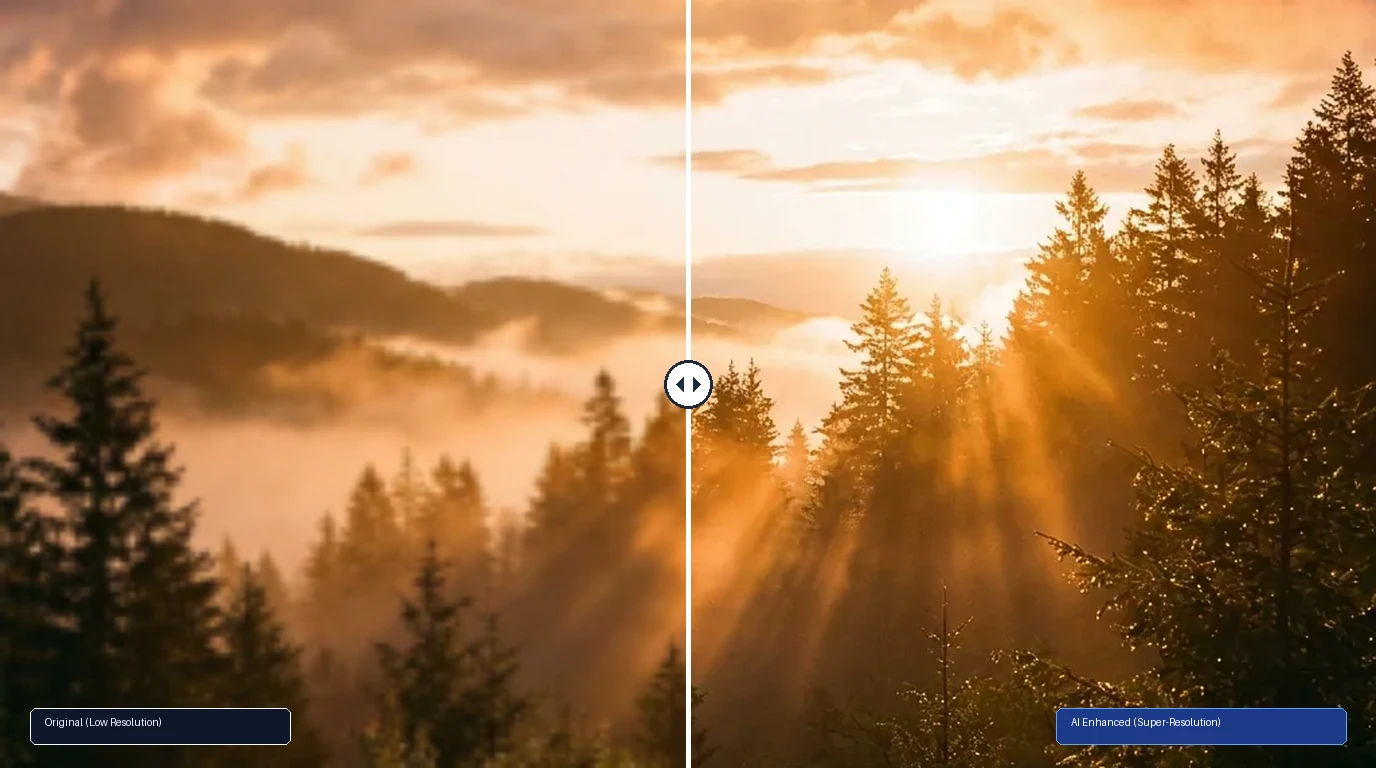
Modern digital photography often requires greater clarity than original files provide. Whether you are handling compressed smartphone snapshots, low-resolution e-commerce catalog photos, vintage family prints, or soft digital art, choosing the best ai enhancer can transform unusable files into crisp, high-resolution visuals.
Early image scaling relied on bicubic interpolation. Those algorithms simply copied neighboring pixels, creating fuzzy edges and amplifying noise. Modern deep learning models reconstruct missing details from learned photographic textures. They infer facial anatomy, rebuild fine weaves, eliminate sensor grain, and sharpen focus without turning your image into a blurry grid.
However, different engines serve distinct workflows. Some tools focus on desktop RAW sensor denoising for gallery prints, while others offer rapid browser upscaling or specialized facial restoration for family portraits.
Note: This site operates CrispFix and we've aimed to evaluate all tools objectively.
Key Takeaways (TL;DR)
- Best for Instant Browser Super-Resolution & Defect Repair: CrispFix delivers fast web-based upscaling, scratch inpainting, and glare correction with zero cost, zero watermarks, and no mandatory registration.
- Best for Professional Desktop RAW Workflows: Topaz Photo AI provides standalone desktop rendering, 6x scaling, camera sensor noise suppression, and Lightroom plugin integration for studio photographers.
- Best Free & Open-Source Offline Enhancer: Upscayl executes Real-ESRGAN models entirely on your local GPU across Linux, macOS, and Windows with complete data privacy.
- Best for Mobile Portrait & Facial Reconstruction: Remini specializes in rebuilding sharp eyes, skin, and facial contours from degraded smartphone captures.
- Best for Cloud Upscaling & E-Commerce Presets: Let's Enhance scales images up to 16x in the cloud with automated color grading and print-ready presets.
- Best for Automated Batch Production & PC Utility: VanceAI combines web and desktop utilities for automated batch upscaling up to 8x across commercial catalogs.
- Best All-in-One Online Photo Editor with Enhancer: Fotor pairs quick one-click enhancement filters with graphic design templates and background removal tools.
AI Image Enhancer Feature & Pricing Comparison
The matrix below contrasts verified pricing, core strengths, maximum scaling factors, supported platforms, and recommended use cases across all seven evaluated tools:
| Tool | Verified Pricing | Core Strength | Max Scale | Platforms | Recommended Use Case |
|---|---|---|---|---|---|
| CrispFix | 100% Free (no account required) | Neural resolution boost & defect inpainting | Super-Resolution | Web (All browsers) | Instant high-res cleanup, vintage prints, portraits |
| Topaz Photo AI | $199/yr billed annually or $39/mo | RAW noise suppression & pro print upscaling | 6x (600%) | macOS, Windows (Desktop + Plugins) | Professional studio photographers & gallery prints |
| Upscayl | 100% Free & Open-Source (AGPL-3.0) | Local GPU processing & open-source models | 4x to 16x | Linux, macOS, Windows | Privacy-conscious users & batch local processing |
| Remini | Free ad-tier mobile; Pro ~$9.99/wk | Deep generative facial reconstruction | 2x to 4x | iOS, Android, Web | Restoring blurry smartphone selfies & mobile faces |
| Let's Enhance | 10 free credits; from $9/mo (100 credits) | Cloud-based scaling & e-commerce clarity | Up to 16x (500 MP) | Web (Cloud SaaS) | Online merchants & print-on-demand artwork |
| VanceAI | 3 trial credits; from $4.95/mo (100 credits) | Automated batch processing & desktop client | Up to 8x | Web, Windows PC | Bulk catalog upscaling & mixed creative assets |
| Fotor | Free basic tier; Pro from $8.99/mo | 1-Click photo enhancement & graphic suite | 2x to 4x | Web, macOS, Windows, Mobile | Quick social media touch-ups & basic collage design |
(Note: Pricing, credit limits, and feature sets verified against official vendor documentation as of September 2026).
Detailed Reviews: The 7 Best AI Enhancers in 2026
1. CrispFix: Best for Instant Browser Super-Resolution & Defect Repair
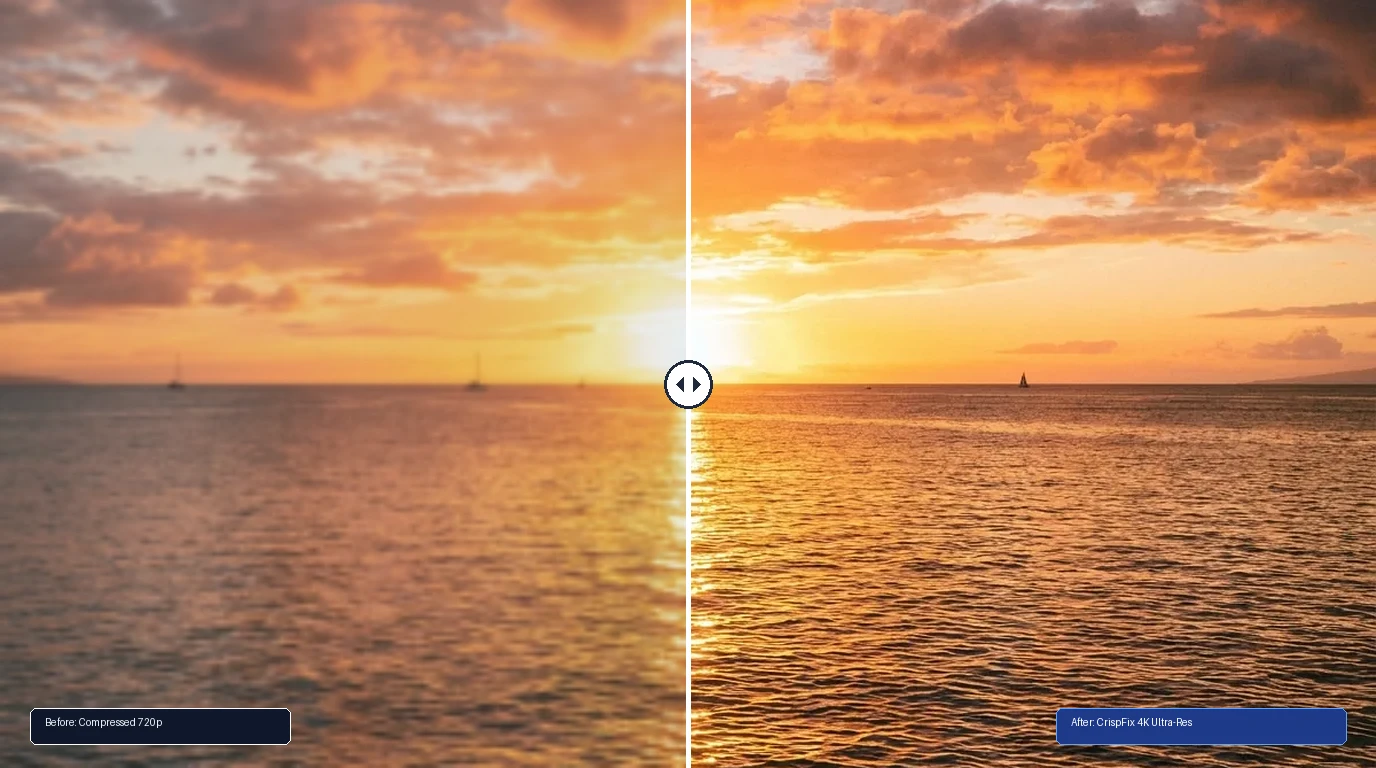
For creators needing fast photo enhancement without installing desktop software or paying recurring subscriptions, CrispFix delivers an unmetered browser solution. It focuses specifically on optical clarity, super-resolution enlargement, and photographic defect repair.
Unlike upscalers that enforce paywalls after a single test image, CrispFix runs free without accounts, watermarks, or credit limits. A core strength is physical defect correction: standard upscalers often magnify scratches and creases alongside genuine textures, whereas CrispFix uses neural inpainting to repair surface damage. Creators can combine the resolution image enhancer with old photo restoration to recover archival portraits, or clear distracting spectacle reflections with the glare engine.
- Where it shines: 100% free web access with no registration, no subscription walls, and no watermarks; dedicated neural models for scratch removal, eyeglasses glare reduction, and natural super-resolution.
- Trade-offs: Focused strictly on photo restoration; lacks multi-layer graphic templates or video tools.
- Pricing: 100% free with direct full-resolution downloads.
- Supported Platforms: Web (Chrome, Safari, Firefox, Edge).
- Official Source: https://crispfix.com
- Verdict: The premier choice for everyday creators and archivists wanting dependable photo enhancement directly in their browser without recurring fees.
2. Topaz Photo AI: Best for Professional Desktop RAW Workflows
Topaz Photo AI sets the benchmark for desktop image processing. Engineered for commercial photographers, wildlife shooters, and print studio operators, it integrates upscaling, noise reduction, and sharpening into an intelligent desktop engine.
Unlike browser utilities that compress files before processing, Topaz Photo AI operates directly on native camera RAW files. Its Autopilot analyzes each photograph to detect sensor noise, motion blur, and lens softness, applying corrective weights automatically. It scales up to 6x (600%) while recovering delicate plumage, fabric weaves, and foliage textures, integrating directly as a plugin for Adobe Lightroom Classic and Photoshop.
- Where it shines: Exceptional RAW sensor noise reduction; up to 6x upscaling with fine-detail preservation; native offline execution handling giant files; direct Lightroom and Photoshop plugin support.
- Trade-offs: Demands modern dedicated GPU hardware for fast rendering; substantial software investment.
- Pricing: Topaz Photo Personal costs $199 per year billed annually (or $39 per month with no commitment). Topaz Photo Pro costs $599 per year.
- Supported Platforms: macOS and Windows desktop.
- Official Source: https://www.topazlabs.com/topaz-photo-ai
- Verdict: The gold standard for professional photographers requiring maximum detail recovery from RAW camera files in a dedicated desktop workstation.
3. Upscayl: Best Free & Open-Source Offline Enhancer
Upscayl is the leading open-source image upscaler. Built as a native desktop client powered by Vulkan compute shaders, Upscayl runs deep learning models locally without sending personal photographs to external servers.
The application incorporates multiple models, including Real-ESRGAN and Remacri architectures. Users can upscale images 4x in a single pass, or activate double-upscaling to achieve 8x or 16x multipliers. Processing occurs locally in hardware memory, making processing speeds dependent on your GPU. Released under the AGPL-3.0 license, Upscayl has no advertising, tracking, or quotas, and includes batch folder processing.
- Where it shines: 100% free and open-source software with zero restrictions; complete offline privacy since no data leaves your machine; batch folder processing across Linux, macOS, and Windows.
- Trade-offs: Requires a Vulkan-compatible graphics card; older computers without dedicated GPUs render slowly.
- Pricing: Free and open-source (AGPL-3.0). Cloud version offered separately.
- Supported Platforms: Linux, macOS, and Windows.
- Official Source: https://upscayl.org and GitHub Repository
- Verdict: An outstanding zero-cost choice for developers and privacy-minded creators with modern GPUs wanting unlimited offline upscaling.
4. Remini: Best for Mobile Portrait & Facial Reconstruction
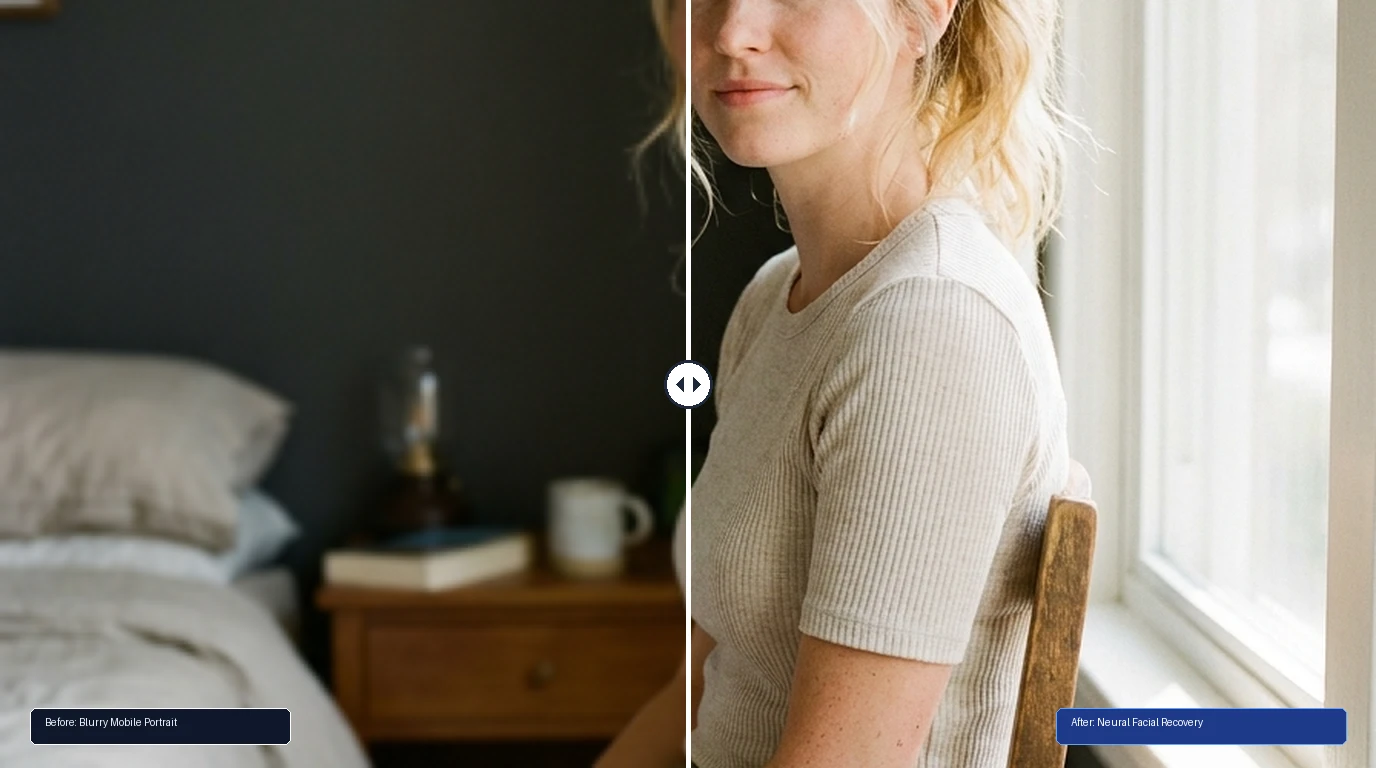
Remini gained viral prominence on mobile devices by demonstrating facial reconstruction on blurred smartphone selfies and compressed portraits. Developed by Bending Spoons, Remini uses generative face priors to infer structural details—including eyelashes, irises, lips, and skin texture—from low-quality input pixels.
When a portrait suffers from motion blur or compression artifacts, Remini replaces degraded pixels with sharp anatomical features. For mobile creators refreshing social snapshots, it delivers striking visual transformations in seconds. However, because its generative prior leans toward modern digital beauty standards, it can alter distinctive ancestral features when processing vintage archives.
- Where it shines: Exceptional ability to reconstruct sharp eyes, teeth, and skin textures from blurry mobile portraits; convenient touch workflow; integrated short video enhancement.
- Trade-offs: Generative face priors can hallucinate modern features onto historical portraits; aggressive weekly subscription prompts on mobile.
- Pricing: Free mobile tier includes limited daily enhancements (3 to 5 images) with video ads. Pro subscriptions run ~$9.99 per week or annual plans.
- Supported Platforms: iOS, Android, and Web.
- Official Source: https://remini.ai
- Verdict: Highly effective for mobile users seeking quick portrait sharpening for social media, though less suited for delicate historical archives.
5. Let's Enhance: Best for Cloud Upscaling & E-Commerce Presets
Let's Enhance is a mature cloud platform tailored for digital artists, online store owners, and print-on-demand businesses. Rather than requiring technical parameter configuration, Let's Enhance organizes models around practical goals like Smart Enhance, Digital Art, and Print Readiness.
The platform scales images up to 16x, producing outputs up to 500 megapixels. For e-commerce merchants managing listings on Shopify or Etsy, Let's Enhance provides automated tools to clean background clutter, sharpen product edges, and balance color saturation across entire merchandise batches. Processing occurs on cloud servers, allowing simultaneous uploads without straining local hardware.
- Where it shines: High maximum scaling factors up to 16x and 500 megapixels; specialized presets optimized for print-on-demand and online retail; cloud-based rendering that avoids local hardware strain.
- Trade-offs: Operates on a credit-based subscription model; requires stable internet connectivity for large batch transfers.
- Pricing: 10 free credits upon signup. Paid subscription plans start at $9 per month billed annually ($12 per month billed monthly) for 100 credits.
- Supported Platforms: Web (Cloud SaaS).
- Official Source: https://letsenhance.io/pricing
- Verdict: Ideal for commercial merchants and digital illustrators needing large-scale cloud enlargement and print-ready presets without managing local software.
6. VanceAI: Best for Automated Batch Production & PC Utility
VanceAI provides a suite of AI image processing utilities accessible via a web interface and an installable Windows client (VanceAI PC). The platform covers diverse enhancement tasks, including super-resolution up to 8x, noise reduction, motion blur removal, and anime character upscaling.
A key advantage of VanceAI is workflow flexibility: casual users can upload files via their browser, while production teams can deploy the desktop client to run automated batch queues locally, avoiding upload bottlenecks. Its models perform reliably on architectural photos, scanned documents, and graphic illustrations, sharpening lines without introducing halo artifacts.
- Where it shines: Versatile tool catalog covering super-resolution, sharpening, denoising, and anime-specific scaling; Windows desktop application for high-volume local batch processing.
- Trade-offs: User interface feels split across multiple sub-tools; free trial provides only 3 test credits.
- Pricing: 3 trial credits provided upon signup. Subscription plans start at $4.95 per month for 100 credits, alongside annual billing and pay-as-you-go packs.
- Supported Platforms: Web and Windows desktop.
- Official Source: https://vanceai.com/pricing/
- Verdict: A capable tool for small businesses and Windows desktop users needing structured batch enhancement across diverse asset types.
7. Fotor: Best All-in-One Online Photo Editor with Enhancer
Fotor bridges the gap between dedicated neural enhancement utilities and full-featured online design suites. While specialized tools focus exclusively on pixel restoration, Fotor integrates a 1-Click AI Photo Enhancer into a broader workspace that includes collage makers, flyer templates, and graphic design tools.
When you import an underexposed or soft photograph into Fotor, its automated enhancer evaluates dynamic range, contrast, and edge sharpness in a single step. For users seeking a versatile Fotor alternative with zero credit restrictions, dedicated restoration tools provide cleaner results, but Fotor remains attractive for users wanting design assets and enhancement in one location.
- Where it shines: Comprehensive graphic design environment with thousands of pre-built templates; intuitive one-click enhancement slider; cross-platform sync across web, desktop, and mobile.
- Trade-offs: Free version watermarks AI outputs and displays advertising; automated enhancements use generalized smoothing that can wash out fine vintage textures.
- Pricing: Free basic version with watermarked AI outputs. Fotor Pro costs $8.99 per month (or $39.99 per year, equivalent to $3.33 per month) with 100 monthly credits. Fotor Pro+ costs $19.99 per month with 300 monthly credits.
- Supported Platforms: Web, Windows, macOS, iOS, and Android.
- Official Source: https://www.fotor.com/pricing/
- Verdict: Best suited for bloggers, social media managers, and casual editors wanting a combined photo enhancer and graphic template suite in one subscription.
How to Choose the Right AI Enhancer for Your Workflow
Selecting the ideal image enhancer requires matching your technical requirements and hardware resources with each tool's core architecture:
- For zero-cost web enhancement and physical defect restoration: Use CrispFix to clean scratched antique prints, eliminate flash reflections from glasses, or scale images without subscriptions or watermarks.
- For professional studio photography and RAW print workflows: Choose Topaz Photo AI for its standalone desktop architecture, RAW noise suppression, and Lightroom plugin integration.
- For maximum privacy and unlimited offline scaling on your GPU: Download Upscayl for completely private, unmetered 4x to 16x upscaling backed by an open-source license.
- For mobile portrait retouching and facial reconstruction: Install Remini to rapidly restore clear facial features on low-resolution smartphone selfies.
- For e-commerce catalog scaling and cloud convenience: Select Let's Enhance for cloud infrastructure and pre-configured commercial presets.
- For high-throughput Windows batch processing: Deploy VanceAI for dependable batch scaling across diverse graphic assets.
- For all-in-one graphic design and quick social touch-ups: Use Fotor if your daily workflow blends basic image enhancement with marketing banners and flyer templates.
FAQ
What is the difference between an AI photo enhancer and traditional sharpening?
Traditional sharpening filters rely on unsharp masking and edge contrast boosting. They increase contrast between adjacent light and dark pixels, creating an optical illusion of sharpness that frequently accentuates noise and halos. In contrast, an AI photo enhancer uses deep neural networks trained on millions of high-resolution images. Rather than simply adjusting contrast sliders, the AI analyzes structural context and reconstructs missing details, producing crisp edges, authentic textures, and clean background noise reduction.
Can an AI enhancer fix completely blurry and out-of-focus faces?
AI enhancers recover significant clarity from soft-focus or moderately blurred portraits by leveraging generative facial priors. Models trained on human anatomy identify facial geometry, rebuilding recognizable eyes, lips, and facial hair. However, if a face is completely obscured or reduced to a few indistinct pixels, the neural network must synthesize new details based on training data. For historical archives, using contextual restoration tools like CrispFix ensures authentic facial contours are preserved without artificial distortion.
Are free AI image enhancers safe for private photographs?
Security policies vary significantly between services. Cloud-based enhancers require uploading your image files to remote servers for processing. While reputable cloud services employ encrypted transfers and automated file deletion schedules, privacy-conscious creators should always review data retention terms. For complete data privacy, open-source desktop software like Upscayl processes all files locally on your computer's GPU without internet transmission. Similarly, web utilities like CrispFix process tasks directly with temporary session caching and no permanent data harvesting.
How much can you upscale an image before quality degrades?
Most neural upscalers perform reliably between 2x and 4x magnification, transforming a 1080p image into 4K resolution with clean edge definition. High-end engines like Topaz Photo AI and Let's Enhance support scaling up to 6x or 16x. However, the maximum achievable fidelity depends directly on the quality of the input file. If the source image suffers from severe sensor noise, aggressive JPEG compression, or extreme motion blur, magnifying the file beyond 4x can introduce painterly smoothing or unnatural synthetic patterns.